Table of Contents
Why Locus Map loses fixed GPS location or is killed by the OS in standby mode
Increasingly, users have reported issues with losing their GPS signal during track recording when their device enters standby, resulting in direct lines instead of accurately recorded tracks. What to do to avoid it?
1. Allow Locus Map to access GPS at any time
The operating system must be set for Locus Map NOT to switch GPS off in standby mode (when the display goes off) - always select the All the time permission for Locus Map.
Android 11 and newer
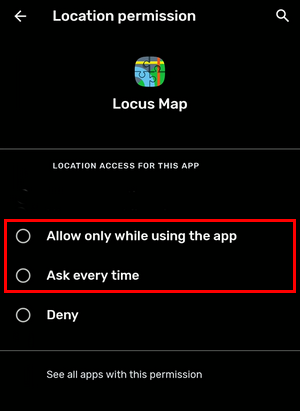
The “all the time” permission is not included in the system app permissions. You can select only “while using this app” or “ask every time”:
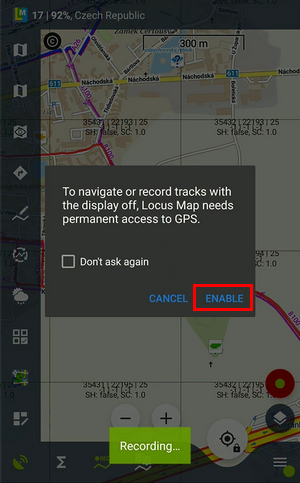
When you launch Locus Map and start a feature that runs in the background (voice navigation, track recording, live tracking…), Locus Map displays a compulsory warning:
 . Then you are prompted to allow all-time access to the location in the system settings:
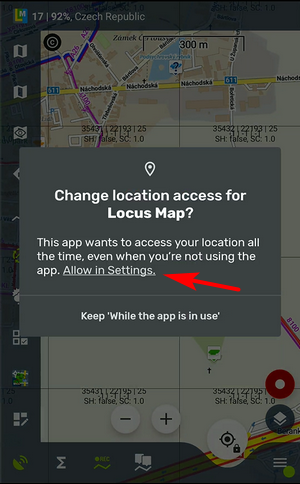
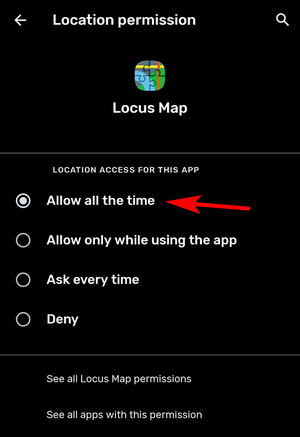
This setting, however, is not permanent. After not using the app for some time (e.g., three months), the “all-time” access permission is taken away and you have to go through this procedure again.
Android 10
This OS version divides permission to access GPS location into three modes:
- no access - the app is unable to get an accurate location ever
- only when the app is used - Locus Map can get GPS location only when the display is on, and Locus is “used”, i.e., manipulated directly on the screen. When the display goes off, Locus loses the GPS location and can't record tracks, navigate, share location in real-time over Live tracking, etc.
- all the time - the only mode in which Locus Map is permitted to run correctly in the background so please USE THIS MODE! It doesn't mean Locus Map is connected to GPS all the time, though - only when it needs it, so don't worry about the battery consumption.
2. Exclude Locus Map from battery optimization
Battery saving modes or other performance-optimizing settings on your device kill apps they consider unused or redundant, no matter whether the app is running in the background on the user's request. The mode can be named differently depending on the device manufacturer. There are two ways to prevent this: either switch the saving mode completely OFF or make an exclusion for Locus Map if possible. For example:

For device-specific instructions, please visit Dontkillmyapp.com »
3. Turn OFF Google Services assisted location
On some devices, this option causes the GPS for Locus Map running in the background to be killed. So, if you experience such behavior despite having performed the actions in steps 1 and 2, please do the following:
- go to Locus Map settings > Gps&Sensors
- find Google services-assisted location and TURN IT OFF