Translated from English by gtranslate.io
This is an old revision of the document!
Do you want to keep track of your workout or show your trip to your buddies? Record it:

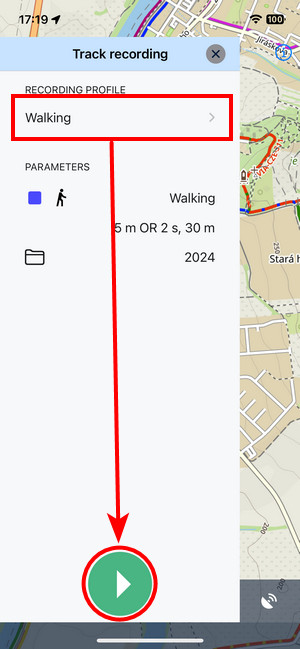
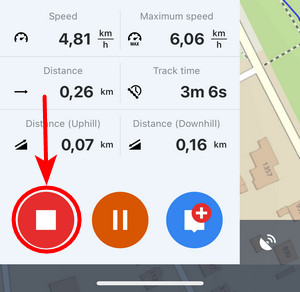
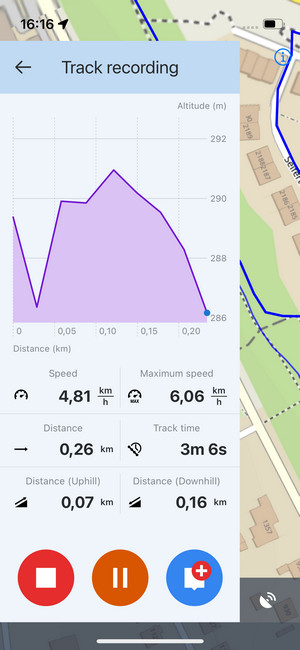 and your track is being recorded. The active recording is marked by the red button and the line of the track drawing behind the cursor: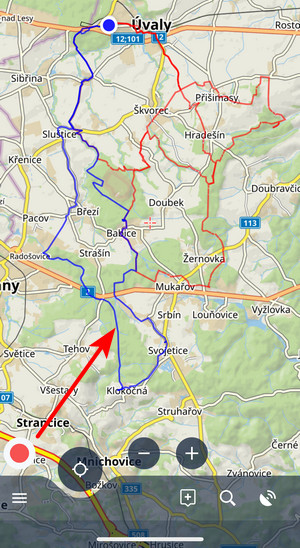
Locus Map can record various activities outdoors. Each activity has its own track recording profile adjusted to the character of the activity. When you start track recording, your last used profile is selected.
When you want to record another activity, tap the chosen profile to open the selection. Tap another profile to Select it:

You can reconfigure every profile - change its name, activity, preferred storage folder, line style and other parameters. To do so, tap the settings button:
 Then tap a selected profile to configure it:

You can insert your custom name for the profile.
Select from a vast array of activities in 6 categories:

Changing an activity changes only the icon. The method and accuracy of the track recording are defined by the parameters below.
Every profile can store the tracks in a different folder. Choose it in the Library.
Here, you can set the color and thickness of the track line on the map during recording.
Tapping the sample opens a dialog to set the color, thickness and other parameters of the saved track line:

There are two modes:

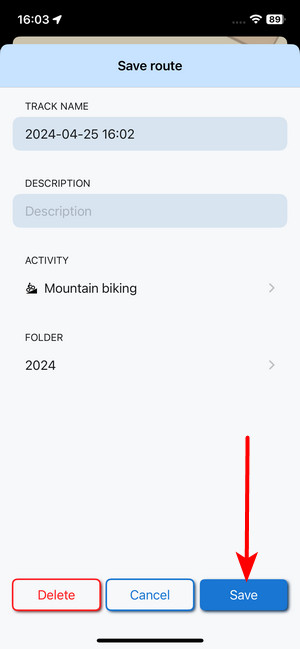
When you are done with the editing, tap Save:

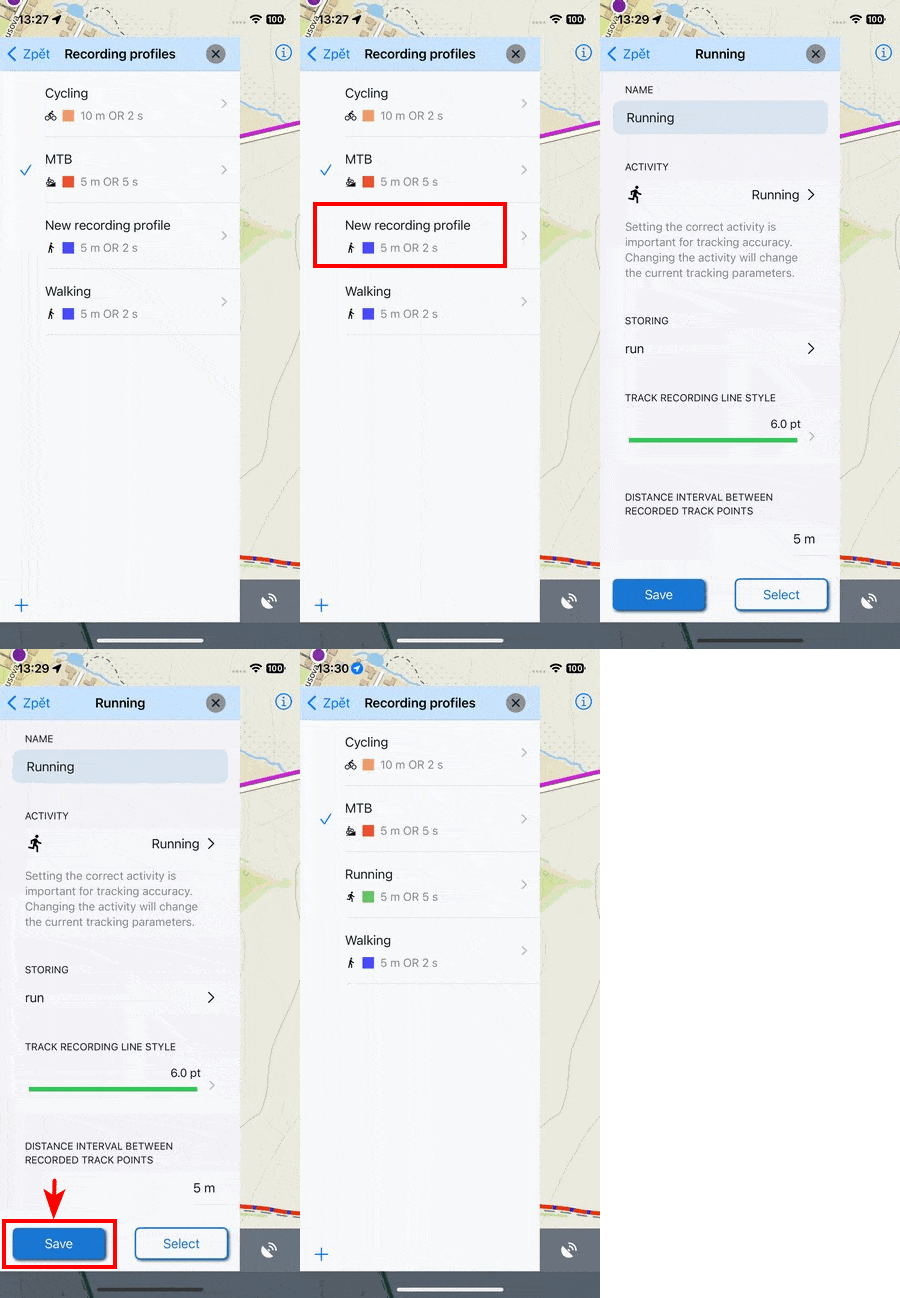
The basic profile selection only contains cycling, MTB and walking. If you want to add another activity, tap the + in the bottom left corner:
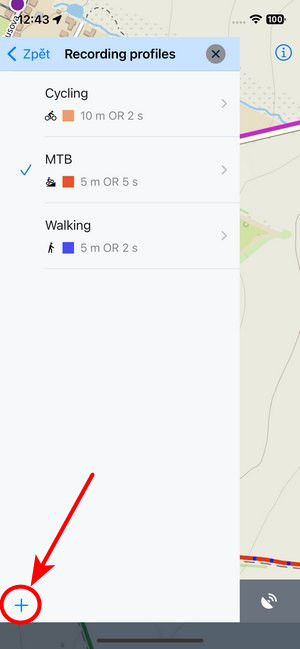 A new profile emerges in the selection. Tap it and change its parameters according to your needs. Don't forget to Save the new profile: