

Translated from English by gtranslate.io
This is an old revision of the document!


Clicking the search button will bring up a predefined list of categories of places that may be most useful to the typical outdoor fan.
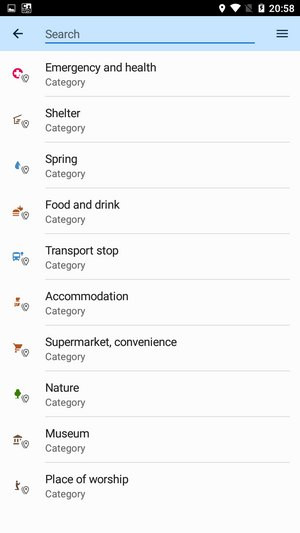
So if you’re not looking for a particular place, you can choose from the list. If you’re looking for a category that’s not in the initial list, type it into the search box, and the Locus autocomplete will offer it to you in a flash.

Tap on a category and all the places in it will be highlighted on the map. As you scroll the map, the next points in the category will load automatically. In the bottom panel, the locations are sorted in a list that you can slide out to the full page and browse locations by name. The first item at the top is highlighted on the map:

If you’re looking for a specific place or an address, start typing your query in the search box. As soon as you enter the first letters of your query, Locus already suggests relevant categories and places you searched for earlier. It tries to guess what you are looking for and continuously offers other options containing the given character string:

The autocomplete also returns quick results in the search of the app's features and settings:

If you don’t make a selection in the autocomplete and click on the magnifying glass below, Locus starts searching according to the specified string, even in areas that the search engine hasn’t offered before.

The results are displayed in order of importance and sorted in a list below the map. The panel can be enlarged to full screen and browsed again. You can specify the search area by clicking on Search this area:
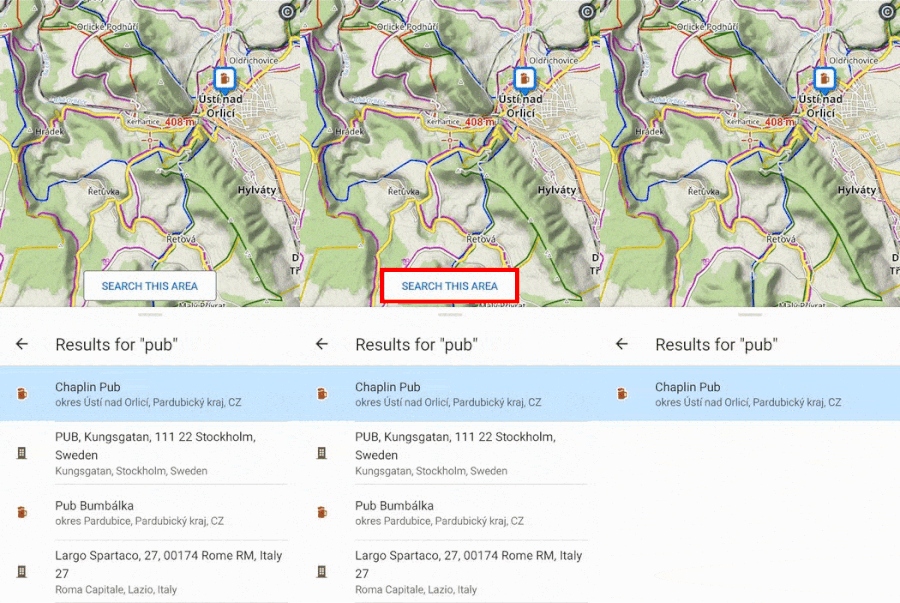
If you move the map elsewhere or zoom out, you can again change the search area by clicking on the button (the results are not automatically loaded on the map in this case).
When you tap on the specific place you found on the map or in the list, the object is centered on the map, and its detailed information is displayed in the panel below the map.
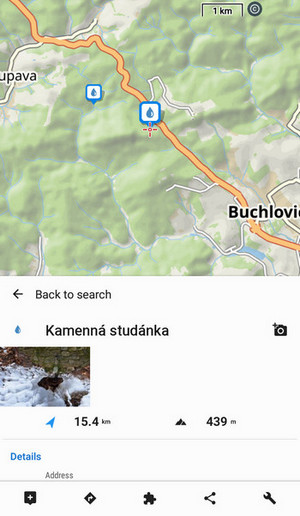
Use the left arrow on the panel to return to the search, or slide the panel down to end the search.
Your previously searched queries are offered to you in the autocomplete in preference to point categories:
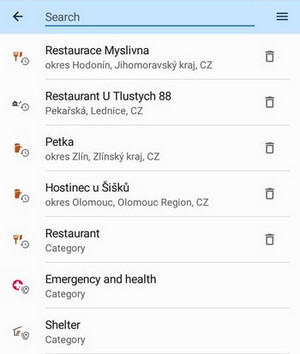
If you no longer use the search items, you can simply delete them from the history.
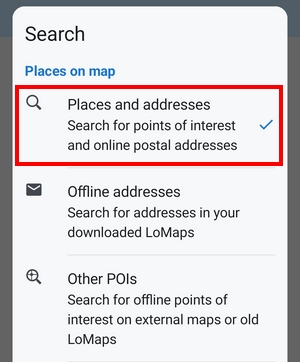
To see other searching methods, tap  in the top bar. The currently selected search method is checked:
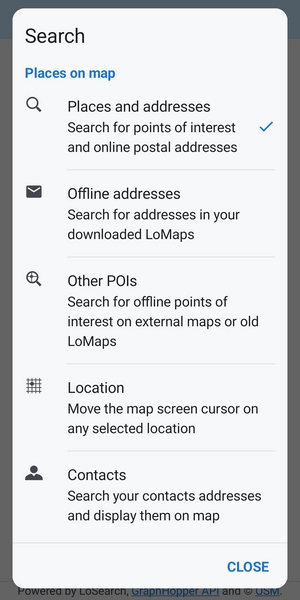
 ===== Offline addresses =====
Locus Map can search offline addresses in downloaded LoMaps. If the offline search list is empty, you have to download a LoMap from Locus Store.
- select
country (LoMap)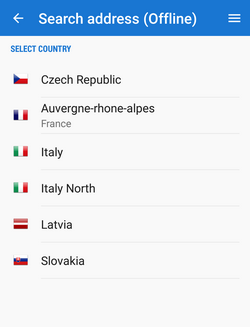 - start typing name of the city, Locus offers results, select the right one.
 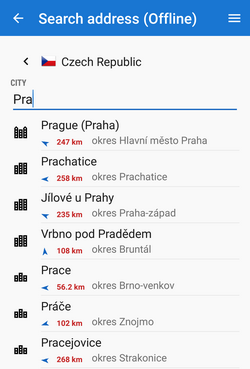 - start typing name of the street, Locus offers results, select the right one
 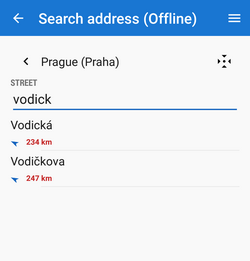 - Locus unfolds a list of all house numbers available on the street. Either choose the desired number or type numbers to refine the search results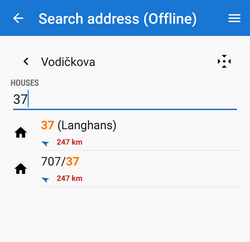
Tapping  displays the selected item (city, street) on the map directly.
 ===== Other POIs =====
work in progress
Searches downloaded
external databases of points of interest and LoPoints from older LoMaps (older than 06/2025).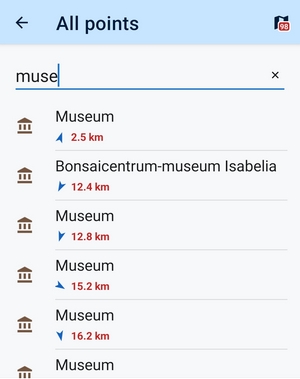
 ===== Location =====
Shifts the cursor to a defined position on the map.
You can define the location by several methods:
===== Location =====
Shifts the cursor to a defined position on the map.
You can define the location by several methods: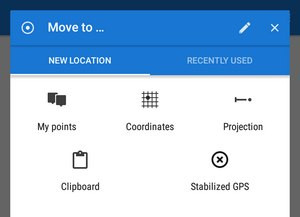 :
* My points - moves cursor at a selected point of interest in My Library
* Coordinates - moves the cursor on entered GPS coordinates
* Projection - defines start point, distance, and the azimuth of the projected point
* Clipboard - moves the cursor on a position stored in your clipboard, be it an address, a place, or coordinates
* Stabilized GPS - moves the cursor on an average of the last several GPS fixed locations
For other options of searching a new location tap
:
* My points - moves cursor at a selected point of interest in My Library
* Coordinates - moves the cursor on entered GPS coordinates
* Projection - defines start point, distance, and the azimuth of the projected point
* Clipboard - moves the cursor on a position stored in your clipboard, be it an address, a place, or coordinates
* Stabilized GPS - moves the cursor on an average of the last several GPS fixed locations
For other options of searching a new location tap  button. Here you can set the basic search modules and also use special ones Available only with Premium - via Location selector:
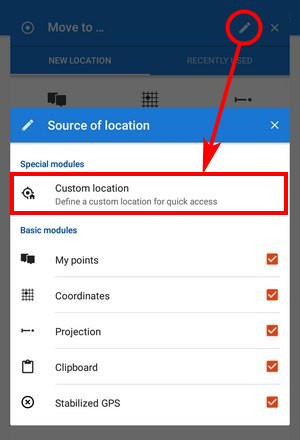 === Recently used ===
Recently used/viewed locations, points, places, etc. are stored in this tab for future use.
=== Recently used ===
Recently used/viewed locations, points, places, etc. are stored in this tab for future use.
 ===== Contacts =====
This feature requires Locus Contacts add-on installed
With this add-on, you can
display the postal addresses of your contacts on a map. Locus Map reads your contact list, filters contacts with attached addresses, and displays them in a table. Select or search which contact to display on a map. In case a contact has two addresses, both are displayed. —- Search in external databases - Wikipedia, What3words and GeoNames/GNS. Available only with Premium ===== Wikipedia =====
Wikipedia is a free-access, free-content Internet encyclopedia, supported and hosted by the non-profit Wikimedia Foundation. Those who can access the site and follow its rules can edit most of its articles. Wikipedia is ranked among the ten most popular websites and constitutes the Internet's largest and most popular general reference work.
===== Wikipedia =====
Wikipedia is a free-access, free-content Internet encyclopedia, supported and hosted by the non-profit Wikimedia Foundation. Those who can access the site and follow its rules can edit most of its articles. Wikipedia is ranked among the ten most popular websites and constitutes the Internet's largest and most popular general reference work.
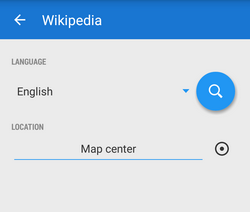 Locus Map can search in its entries that are geo-tagged, i.e. have defined location:
* Language - select the language of searched entries
* Location - define place around which to search - use map cursor position or choose a location by Location selector.
The results are listed in a table of points. They can be displayed on a map or imported for later use. Their details contain URL to the related Wikipedia article.
Locus Map can search in its entries that are geo-tagged, i.e. have defined location:
* Language - select the language of searched entries
* Location - define place around which to search - use map cursor position or choose a location by Location selector.
The results are listed in a table of points. They can be displayed on a map or imported for later use. Their details contain URL to the related Wikipedia article.
The displayed nor imported Wikipedia points do not contain full article texts, only links for their online display. Storing Wikipedia articles for their offline use is not possible.
 ===== What3words =====
Available only with Premium Gold
===== What3words =====
Available only with Premium Gold
The simplest and best memorable coordinate system in the world. The whole surface of the Earth is divided into a network of 3×3 meters squares. Each square is defined by a unique combination of three words.
 ===== GeoNames and GNS =====
Both services contain huge databases of points of interest and interesting places:
* GeoNames- geographical database covering all countries and containing over eight million placenames that are available for download free of charge.
* NGA GEOnet Names Server (GNS)- the geographic names in this database are provided for the guidance of and use by the Federal Government of the United States and for the information of the general public. It contains over 5 million features and 8 million feature names. Databases are updated monthly so the information in them is quite fresh.
Locus Map handles both databases in one dialog:
* Search - type a name or keyword of your search
* Offline search - check this option if you have downloaded some GeoNames or GNS databases to your device. Otherwise, Locus Map searches online.
===== GeoNames and GNS =====
Both services contain huge databases of points of interest and interesting places:
* GeoNames- geographical database covering all countries and containing over eight million placenames that are available for download free of charge.
* NGA GEOnet Names Server (GNS)- the geographic names in this database are provided for the guidance of and use by the Federal Government of the United States and for the information of the general public. It contains over 5 million features and 8 million feature names. Databases are updated monthly so the information in them is quite fresh.
Locus Map handles both databases in one dialog:
* Search - type a name or keyword of your search
* Offline search - check this option if you have downloaded some GeoNames or GNS databases to your device. Otherwise, Locus Map searches online.
Tip for offline search:
Both sites provide freely downloadable data files that can be extracted into the Locus/data/geonames directory. The files appear in the GeoNames search dialog afterward. Select and search 100% offline.


