Table of Contents

Route planning
A quick sample:
Select activity
The first step is to select an activity for which the route will be created. The planner offers two walking, four biking, two driving, one cross-country skiing and one manual drawing profile.
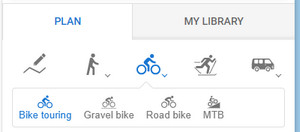
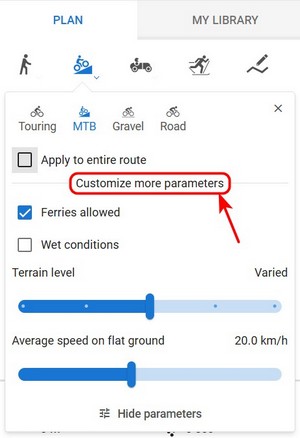
Customize parameters
Walking, biking, and driving profiles offer customizing some of the route parameters, the same way as it is in the Android Locus Map app. More info >>
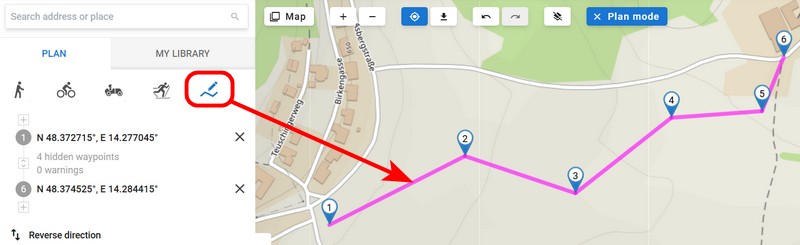
Manual mode
The manual mode is useful when you draw the route in a free terrain or when the routing data for a particular area is missing:
Entire route or per segment?
You can select a different routing profile (activity or means of transport) for every route segment, or you can select one profile for the entire route. To select the latter, check the option “Apply to entire route”:
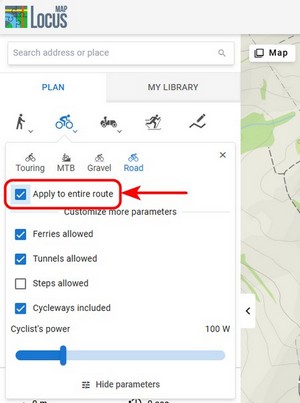
This option is especially important when you need to edit the route - apply for entire route recalculates all route segments.
Add route points
The route is created the same way as in the app. The simplest way is to click the route points directly on the map on roads and paths. There are two ways how to start a route plan:
Route start
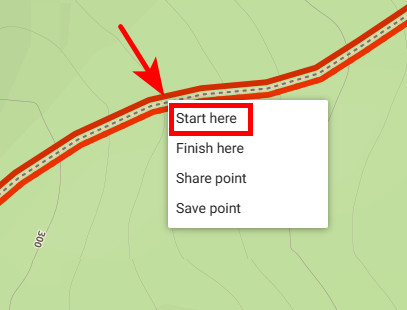
- Right-click + Start here - the first click must be done with the right mouse button and selecting the “Start here” option:
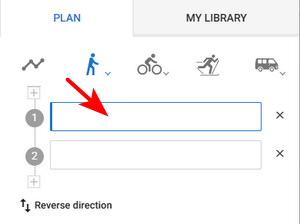
- Click on the first route point box:
By both ways the planner switches into the drawing mode and you can add other route points by left-clicking. By shifting the cursor above the route line between the points a new point emerges and by dragging it you can change the route progress:
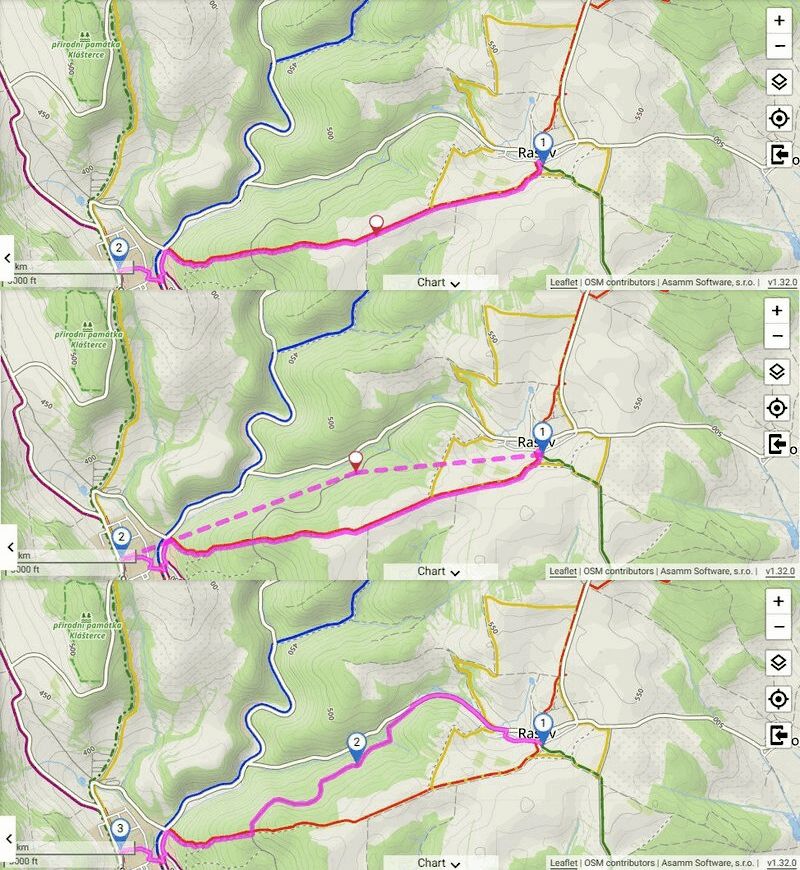 You can move any of the route points at any time and the route always reroutes accordingly.
Adding LoPoints and other points
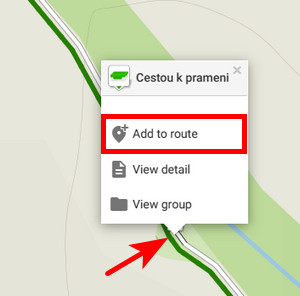
You can also add LoPoints to your route. Shift the cursor on the LoPoint, and a popup emerges. Click on Add to route.
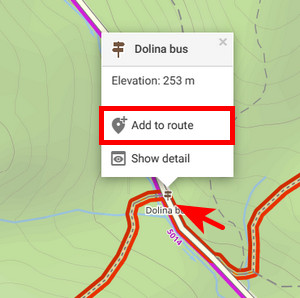
The LoPoint is added at the end of the route.
This way you can add also your user points like geocaches or search results to the route:
Adding points inside the route
The route points are lined up in an itinerary displayed on the panel on the left. Here you can place the route points at the beginning or inside the route.
- click + in between the route points in the itinerary where you want to insert a new point - a new empty mid-point is created:
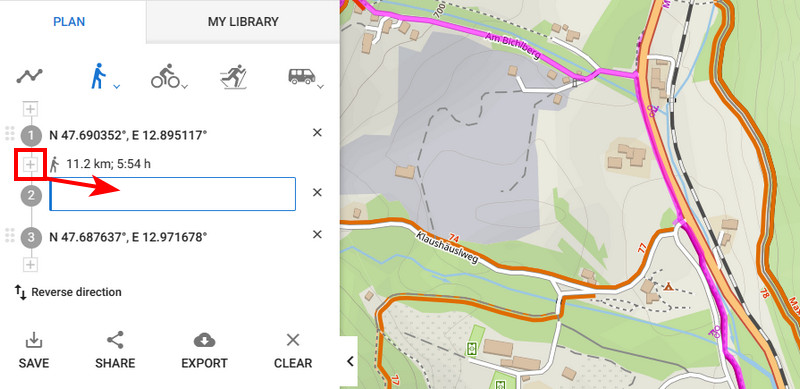
- click on the place on the map or on a LoPoint which you want to insert:
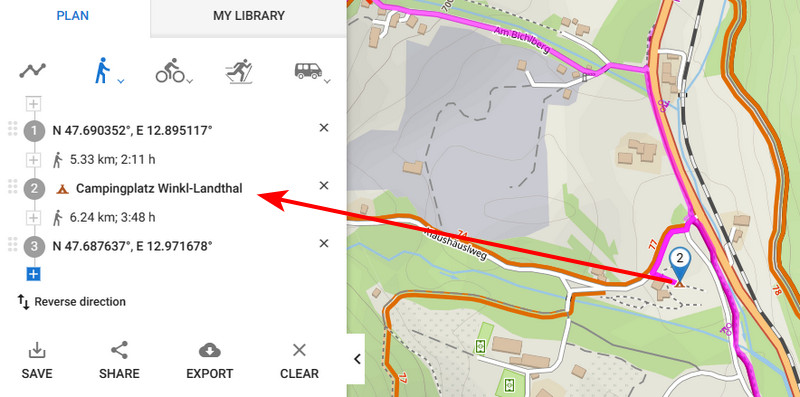
You can also start typing inside the point box and start searching the point.
Changing order, deleting, reverse direction
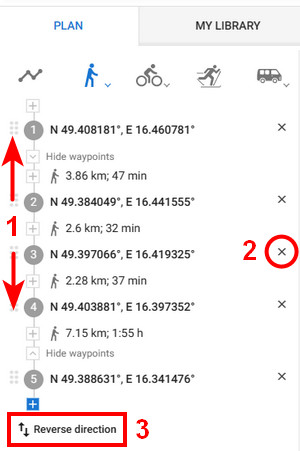
You can change the order of the route points by click-and-drawing them up or down the line (1), delete them (2), or reverse the course of the whole route (3):
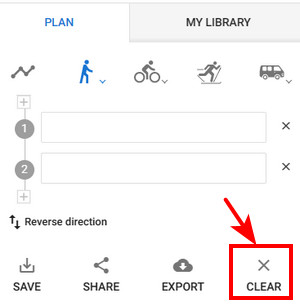
To delete the whole route from the planner, tap Clear:
Changing activity in the route segments
You can fine-tune the route progress by selecting a different activity or means of transport for each route segment.
- click the symbol of the segment activity in the itinerary. A selection of activities and transport opens up.:
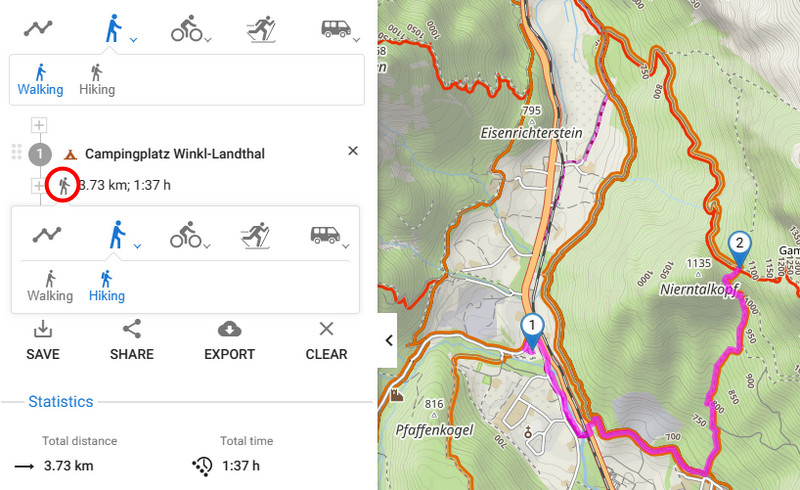
- select a different activity
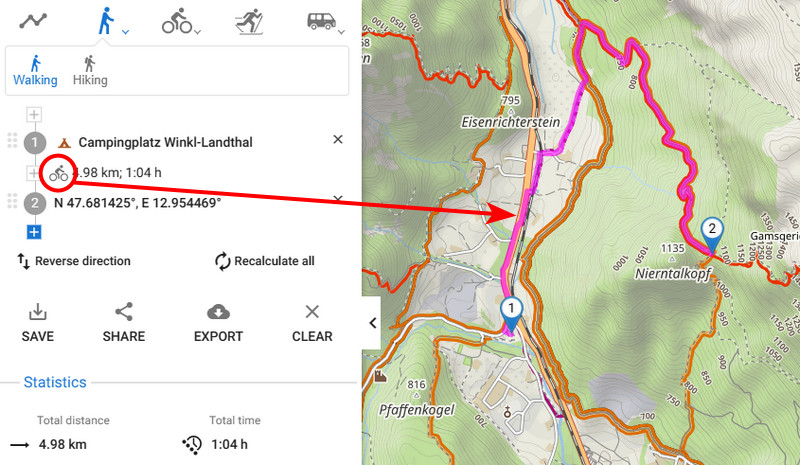
- the route re-routes accordingly:
Undo, redo
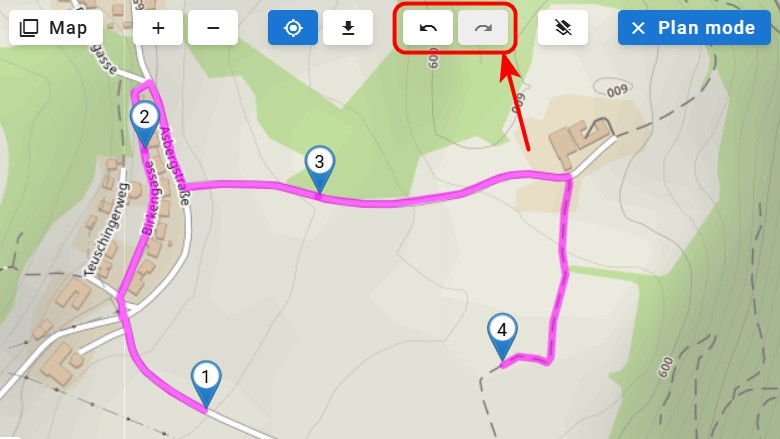
Every action you take during route planning can be reversed and, after reverting, repeated. The undo/redo buttons are in the row of controls in the top left corner:
Route stats
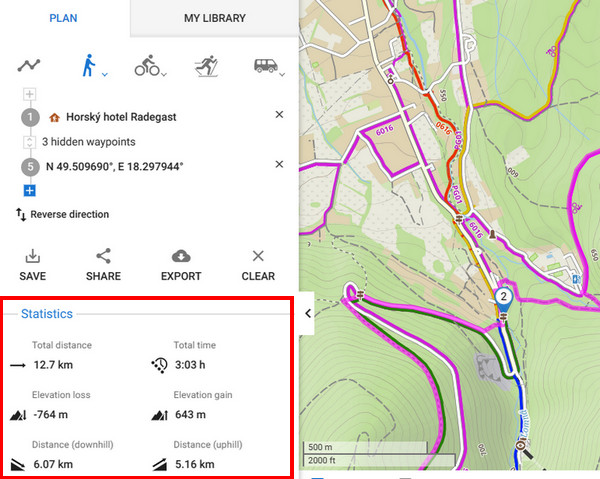
Statistics of the route like distance, estimated time or elevation gain are displayed in the left panel under the itinerary.
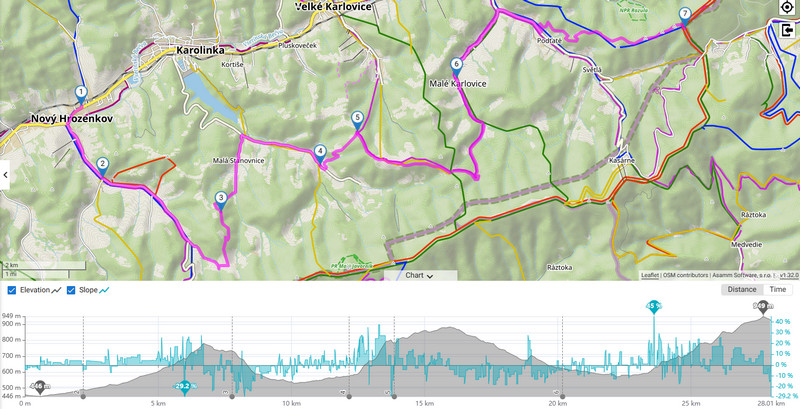
Elevation chart
The elevation and slope progress of the route is displayed on a chart:
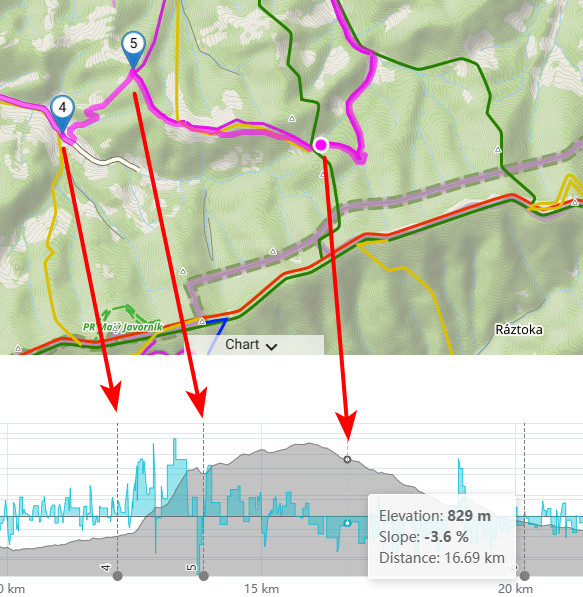
 The chart also displays min/max elevation and slope, waypoints and elevation/slope/distance at the position of the cursor:
 You can change the X-axis parameter - distance or estimated time:

Creating a single point
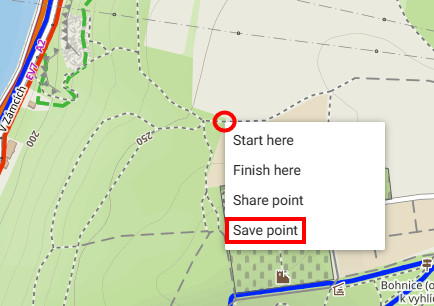
If you want to add your own point that is out of the route:
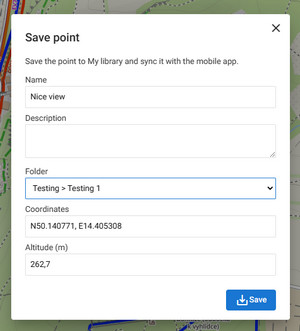
- right-click the map on the spot where you want to place the point
- click Save point
- fill the name and the folder into which you want to save the point (others are optional):
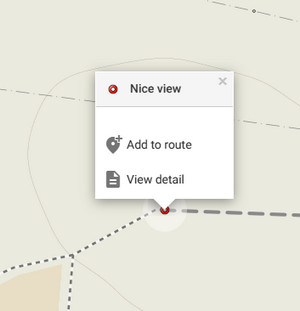
- the point is saved into the library and adopts the icon of its folder:
Saving
Available with Premium Gold
You can save the planned route into your library synced with the Locus Map app:

- (1) edit the route name (optionally), default is the name of the nearest settlement or start/stop destinations
- (2) you can add description (optionally)
- (3) select folder into which the route will be saved (mandatory)
- (4) change the type of activity (optionally). The default is the activity you selected during planning.
- (5) if you don't want to include the navigation commands check Without navigation commands.
- click Save
The route is saved into the selected folder in your library and synced with the app after a while.
Export
You can export the route as a GPX file that can be used in any navigation app or service. Click Export and then Download as GPX:
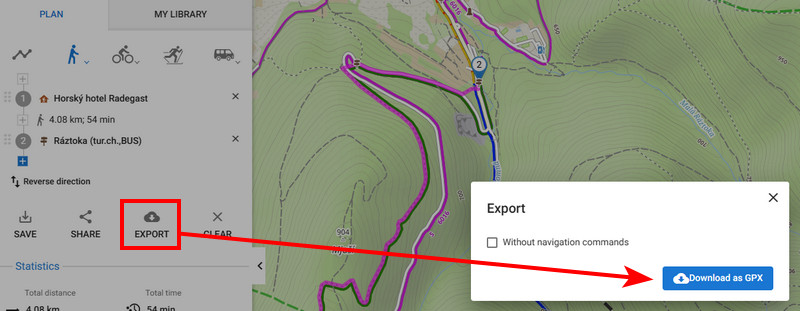
If you don't want to keep the voice navigation commands in the route file, check the option Without navigation commands.
Sharing
When you have planned a route, tap the Share button. A pop-up emerges, displaying a unique link that can be copied to the clipboard, loaded via QR code and shared:
 The link contains the waypoints defining the route. When clicked on, it opens the Locus web route planner that re-renders the route from them. If you have the browser opened on your phone or tablet, the route opens directly in the Locus Map app.
You can also copy the link directly from the web browser address bar.