

Translated from English by gtranslate.io

Track recording in Locus Map can be controlled from the Locus screen panel and a widget.
It slides from the left side of the screen and can be slid back by a finger or by the “back” HW button. Its content is different in the two phases of its use:
Here you can select your recording profile, select an audio coach, live tracking or connected hardware sensors.  starts track recording.
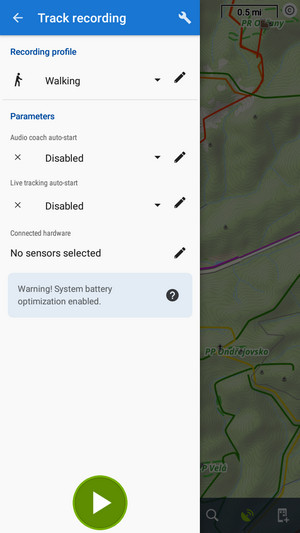
The track recording can be started with a countdown that can be defined in the track recording settings
Ongoing track recording is indicated by:

A major part of the panel is filled by the track parameters that are actively monitored and displayed during the recording.

You can set which values you want to monitor:


During the recording, the elevation gain value may look confusing because it displays quite large numbers; however, it is accurate and represents the total elevation gain measured by your device. As the GPS-measured altitude values are quite fuzzy, the result has to be optimized. The optimization is calculated later, after saving the track, so as not to waste your device's battery life.
Controls of the track recording are under the monitoring items:
 stops recording and proceeds to saving the track
 pauses recording. Paused recording is indicated by an orange indicator, and the track recording button is also orange:
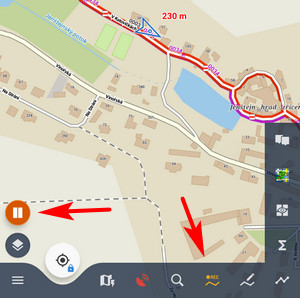
Repeated tapping unpauses the recording.
 adds a waypoint to the track - you can select among a simple point, photo point, audio point, and video point.


Options can be found in the top bar.
Track recording in Locus Map can be comfortably started from a widget. The widget is flexible and can be stretched from two to four positions on the phone screen:

The widget contains:
and stop button - visible when the recording is on
 track recording settings button
Widget in recording-ON mode:

The widget is available only when the Locus Map root directory is stored in the internal memory of the device.


